


Search interactive touchscreen coffee machine usability and Google often surfaces interactive coffee tables, office bean-to-cup kiosks, and Wi-Fi drip makers with phone apps. Those are not the same kitchen problem.
This Meraki practical guide owns usability checks before you buy a home espresso machine with a digital recipe screen: help vs clutter, morning readability, smudges and wet hands, reach and height, taps to a weekday drink, and recovery from a wrong tap. Soft-link the live definitional explainer what is a touchscreen espresso machine and the touchscreen espresso machine for home hub. Soft-name A063 (control balance), A061 / A062 (CoffeeSense honesty and recognition Q&A), A064 (guided first 30 days), and A066 (family profiles) — this page stays on pre-purchase UI QA, not philosophy, NFC science, onboarding curricula, or household profile design.
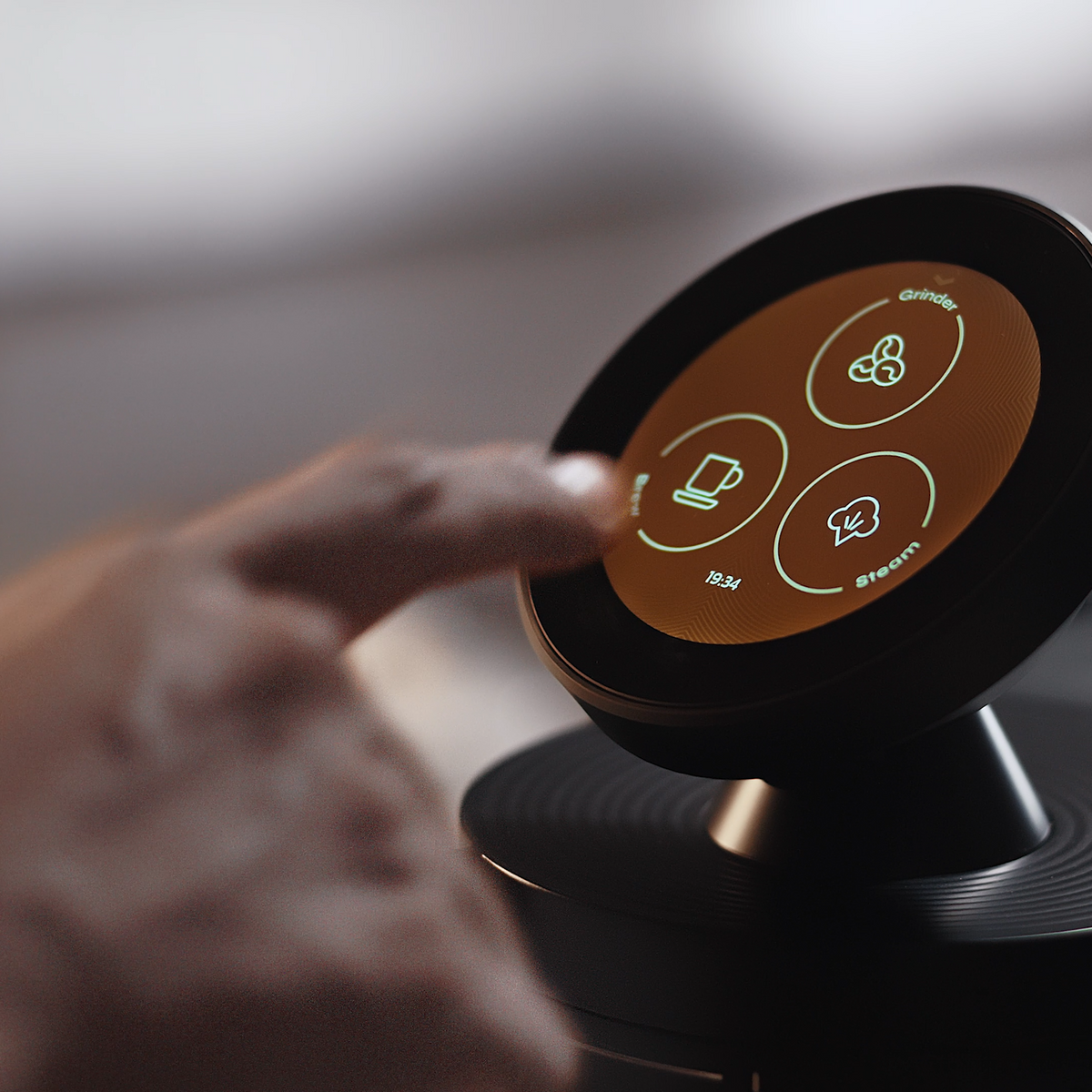
Usability starts here: can you read the labels at 6:45 a.m., hit Brew without hunting, and undo a wrong tap before the shot runs away?
What “interactive touchscreen coffee machine usability” really means for home buyers
Interactive touchscreen coffee machine usability, for home espresso shoppers, means how quickly and safely you can run a weekday drink on the machine’s screen — recipe clarity, tap count, readability, cleaning, and recovery — not whether a furniture coffee table has an LED panel.
SERP noise is loud: commercial interactive tables, TikTok how-tos for unlabeled office machines, and “smart coffee maker” posts about app-scheduled drip. Useful for those products; wrong lane for a portafilter workflow with grind → brew → steam on one display. Category literacy from the Specialty Coffee Association still starts with grind, dose, yield, and taste — the screen should make those levers findable, not bury them under decorative menus.
Disambiguate early: this page is home espresso touchscreen UX, not furniture, not Keurig apps, and not a rewrite of what a touchscreen espresso machine is.
Who this page is for (and who should skip it)
This page is for UX-sensitive buyers — people who care whether the screen helps on a rushed Tuesday, gift buyers who fear “interactive” means clutter, and upgraders leaving capsule or opaque super-automatic UIs who want a pre-purchase checklist.
Skip the definitional “what is” explainer (soft-link above). Soft-name A063 if you want control-balance philosophy (overrides vs drip smart). Soft-name A061 / A062 for CoffeeSense extraction honesty and bean-recognition skepticism; soft-name A064 for a first-month guided curriculum; soft-name A066 for family recipe profiles. Come here for: will this screen help or slow me before caffeine?
Why this is usability (not another “what is a touchscreen” page)
Google mixes product classes. Meraki already publishes a live touchscreen definition and a touchscreen hub; soft-name A063 covers smart systems without losing control.
This page owns usability: practical checks you can run on a listing, showroom floor, or demo video — recipe screens that help vs clutter, morning readability, smudges, wet hands or gloves, reach and height, taps to a weekday drink, and recovery from a wrong tap. Disclosure: Meraki publishes this guide and sells the Meraki Espresso Machine. Examples follow verified product and FAQ claims only (2026-10-26/27 snapshot). We will not invent remote phone shot-firing, AI UI that learns your taste, any-bag NFC, or TIMEMORE® authorship of CoffeeSense. German Design / Red Dot awards are omitted here on purpose.
Core idea in plain language
A useful espresso touchscreen shortens the path to a known drink and makes mistakes cheap to undo — without turning the counter into a second smartphone.
On Meraki, the interactive layer is a guided workflow you can see and tap: grind → brew → steam → serve (touchscreen hub). CoffeeSense™ can load suggested grinding and extraction parameters after you swipe a Meraki NFC bean bag, then you tap the touchscreen to start; dual scales can stop grind and extraction at the quantity you accept (live FAQ: “How do I use CoffeeSense™?”). That is suggestion-plus-execution, not an AI palate. Keep TIMEMORE® mill co-development separate from CoffeeSense NFC guidance.
Usability is not “most features on the home screen.” It is whether the weekday path is short, the labels are readable before coffee, and a wrong tap has an exit. NIST is a reminder that interfaces and measurements only help when you can set, see, and trust the target — the same standard applies to recipe grams on a kitchen display.
How it shows up in a weekday workflow
On a weekday, usability shows up as tap count and recovery, not as a feature tour.
A practical Meraki-shaped morning (aligned with live FAQ language; not remote brew-from-the-train fiction):
- Power on and wait for heat readiness (product FAQ often cites about 3–4 minutes for dual-boiler warm-up — confirm live).
- Pick a saved house drink or load suggested parameters from a compatible Meraki NFC bag.
- Glance the numbers at standing height — dose, yield, grind cue — without opening nested menus.
- Tap to grind; prep the puck (distribution and tamp still matter; UI does not level grounds).
- Tap to brew; watch yield if the scale path auto-stops at your accepted target (dual scales explainer).
- Tap into steam when you want milk; dual boilers exist so brew and steam readiness are not a single-boiler wait that forces you back into the menu.
- If you tapped the wrong recipe: cancel or back out before extraction starts — recovery is a usability feature, not a support ticket.
Helpful screens: large primary actions (Grind / Brew / Steam), visible gram targets, one path to your house espresso.
Clutter risks: decorative animation before caffeine, deep settings buried under every drink, or “smart” labels that do not map to a portafilter step. Soft-name A064 for learning over thirty days; stay here for how many taps before the first sip.
What to verify on the machine or listing
Open the live touchscreen page, product page, what-is touchscreen explainer, and FAQ. Treat every “interactive / smart / AI” line as a claim about weekday hands, not brochure poetry.
- Recipe help vs clutter — Can you spot espresso, latte-style milk drinks, or a house preset without scrolling past unused modes? Soft-lane programmable control and presets without rewriting presets here.
- Morning readability — Contrast, icon size, and whether critical numbers (dose / yield) stay visible without squinting under kitchen light.
- Cleaning and smudges — Glass or glossy panels fingerprint; ask how you wipe without leaching oils into gaps. A screen you dare not clean will look “broken” by week two.
- Wet hands / gloves — Espresso mornings mean damp fingers. Ask whether taps register with residual moisture, or whether the UX assumes dry phone-hand habits. Do not invent glove-certification claims Meraki does not publish — verify on a demo or support answer.
- Reach and height — Screen angle vs counter height; can a shorter household member see labels without a stool? Soft-check published dimensions on the live product page (site graphics often show footprint/height — re-read live).
- Taps to a weekday drink — Count from wake screen to grind start for your usual cup. More than a few intentional taps usually means clutter or missing presets.
- Wrong-tap recovery — Cancel, back, or edit before brew starts. “Commit forever” menus fail usability even if they look premium.
- What is not claimed — No inventing remote phone shot-firing, AI taste learning, or any-bag NFC. Soft-name A061 / A062 for CoffeeSense honesty and recognition questions.
- Exit and support — Confirm refund policy and support (+1 833 854 9555, Mon–Fri 9 AM–5 PM EST).
Re-check FAQ copy the day you buy; live wording outranks blog memory.
Tradeoffs and limits
A good touchscreen buys speed and memory. It also creates new failure modes if you confuse pretty UI with usable UI.
- Espresso touchscreen ≠ interactive coffee table. Furniture LED tables answer retail engagement; home espresso screens answer portafilter steps.
- Espresso touchscreen ≠ drip app. App carafes schedule a pot; recipe screens should not require a second device to pull a shot. This article does not claim remote phone shot control.
- Bigger menus ≠ better mornings. Soft-name A063 for control balance; here, depth without a short weekday path is clutter.
- Suggestions age. NFC suggestions on compatible Meraki bags can be wrong for today’s humidity or roast age — override is normal (SCA research; CoffeeGeek guides).
- Smudges and steam. A screen next to a steam wand will collect film; plan a wipe habit or the “interactive” surface becomes sticky.
- Household height variance. Soft-name A066 for separate family profiles later; usability first asks whether everyone can see and reach the same primary buttons.
Mistakes that waste time
Most “this touchscreen is unusable” mornings are checklist skips, not firmware conspiracies.
- Shopping furniture or drip SERP for espresso answers. Interactive tables and Keurig apps do not stress portafilter prep or dual-boiler steam.
- Counting features instead of taps. A beautiful unused mode still costs attention.
- Ignoring smudge reality. If you will not wipe glass, glossy UI will feel broken.
- Assuming wet-hand phone habits. Test or ask; do not invent glove ratings.
- Skipping wrong-tap practice on a demo. Learn cancel/back before you own the machine.
- Merging TIMEMORE® with CoffeeSense. Mill co-development is not NFC UI.
- Expecting the screen to fix puck prep. Soft-name A061 for extraction honesty after guidance loads.
A simple decision or setup checklist
Use this table when you are deciding whether an interactive espresso touchscreen will help on weekdays — or when you are scoring a showroom demo before you buy.
| Check | Pass signal | Fail / dig deeper |
|---|---|---|
| Recipe help vs clutter | House drink visible in 1–2 glances | Nested tours before Grind / Brew |
| Morning readability | Dose / yield / primary actions readable standing | Tiny gray text; critical numbers hidden |
| Cleaning / smudges | Clear wipe guidance; durable panel | “Never touch” glass next to milk steam |
| Wet hands | Demo taps work with light moisture (ask/test) | Assumes dry phone fingers only |
| Reach / height | Screen angle works for shortest daily user | Only tall adults can read labels |
| Taps to weekday drink | Short path to your usual cup | Many taps or required phone app to brew |
| Wrong-tap recovery | Cancel / back / edit before shot runs | No undo once a recipe is selected |
| Claim honesty | Suggested params + on-machine start (FAQ-style) | Remote AI taste / any-bag magic — verify or ignore |
Setup checklist (short):
- Watch a real grind → brew → steam sequence on Meraki’s touchscreen hub or a live demo — count taps.
- Ask how to cancel a wrong recipe before extraction.
- Note screen height vs your counter and shortest household user.
- Decide your weekday wipe habit for fingerprints and steam film.
- Soft-name A066 later for separate profiles; do not postpone basic readability for “family AI.”
- Keep support hours handy if a menu feels stuck during trial.
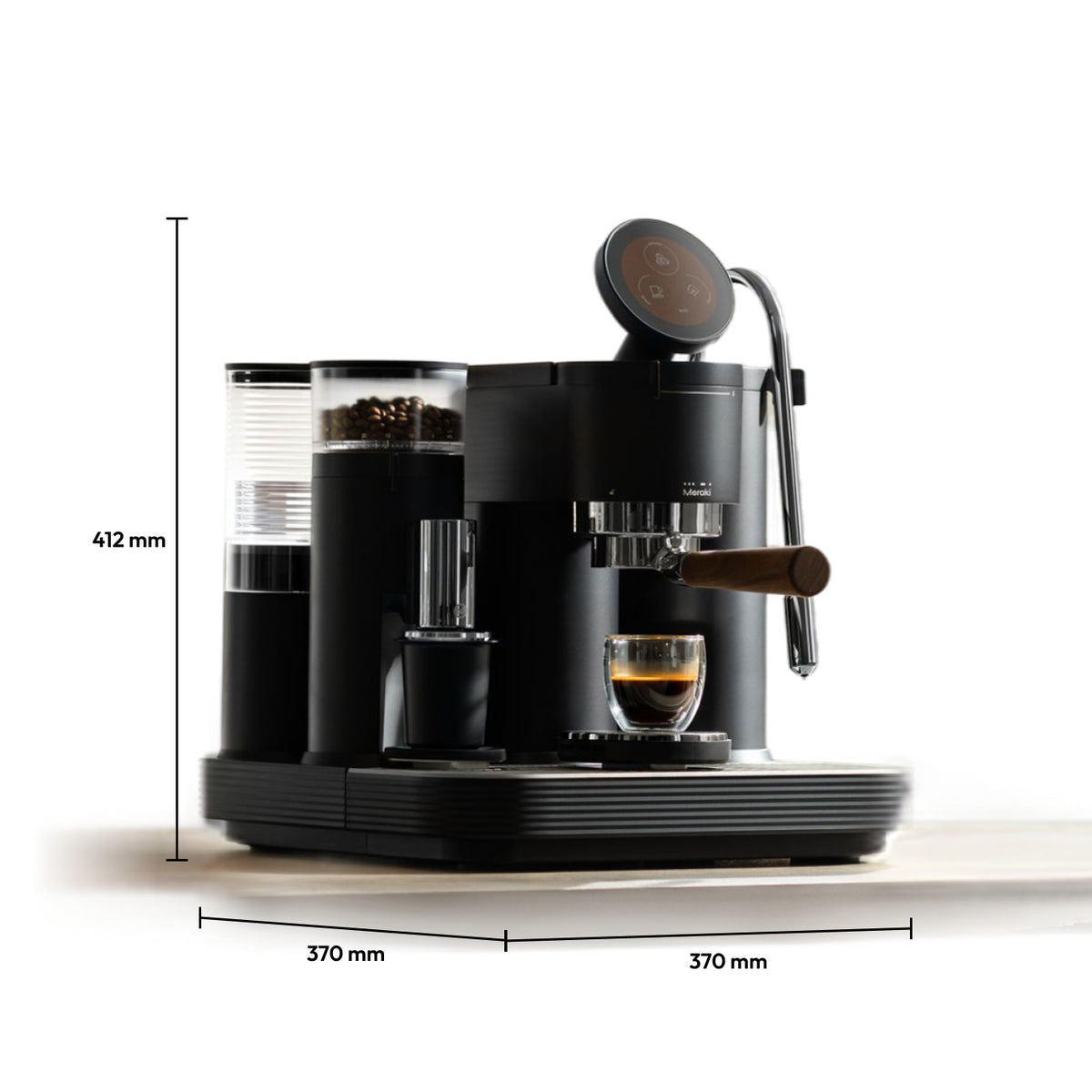
Reach and height are usability checks too — confirm live dimensions and screen angle against your counter and the shortest person who will pull weekday shots.
How this connects to Meraki’s dual-boiler system
Touchscreen usability is not only pixels. Hardware concurrency decides whether the UI stays calm when milk enters the morning.
Meraki’s dual-boiler framing (live dual-boiler page — re-confirm specs) keeps brew and steam heat paths separate so you are not forced into awkward menu waits while a single boiler flips modes. Rotary pump language is commonly framed as a steady 9 bar brew path — not a 15/20 bar marketing scoreboard. Warm-up FAQ language often cites about 3–4 minutes; treat that as a live-check number.
A readable Grind / Brew / Steam sequence only feels usable if brew and steam readiness do not fight each other. Dual boilers do not invent taste; the screen does not invent temperature stability. Together they support a short weekday path and a steamed drink without turning the UI into a holding pattern. Soft-name A063 for control-balance depth; keep this bridge light.
FAQ
Is an interactive coffee table the same as a touchscreen espresso machine?
No. Interactive coffee tables are furniture / digital-signage products. A home espresso touchscreen drives grind, brew, and steam steps on a portafilter machine. If your SERP result is a LED table, you are in the wrong lane for this checklist.
How many taps should a weekday espresso take?
Fewer intentional taps is usually better once a house recipe or preset exists. Exact counts vary by drink and whether you load CoffeeSense suggestions or a saved preset. Use tap count as a demo score — not as a race against every advanced menu.
Will wet hands or gloves work on espresso touchscreens?
It depends on the panel and firmware. Espresso mornings are damp. Ask for a demo with residual moisture; do not assume phone-glass behavior. Meraki does not publish a separate glove-certification claim in the FAQ snapshot used for this article — verify with support if that is a hard requirement for your household.
Does CoffeeSense replace learning the touchscreen?
No. CoffeeSense (live FAQ) loads suggested grinding and extraction parameters from a Meraki NFC bag; you still tap the touchscreen to start grind and extraction, and dual scales can stop at accepted quantities. Soft-name A062 for recognition shopping questions; soft-name A061 for extraction honesty. Usability still needs readable primary actions and wrong-tap recovery.
How is TIMEMORE® related to the touchscreen UI?
TIMEMORE® appears in Meraki materials as grinder co-development — a mill story. The interactive touchscreen and CoffeeSense™ NFC workflow are separate claims. Do not merge them into one “AI screen grinder” story.
Conclusion
Interactive touchscreen coffee machine usability for home espresso is a pre-purchase checklist: recipe screens that help instead of clutter, morning readability, cleaning and smudges, wet-hand reality, reach and height, taps to a weekday drink, and cheap recovery from a wrong tap — not an interactive coffee table, not a drip-app roundup, and not a rewrite of the live “what is a touchscreen” explainer.
If that checklist matches how you shop, start on Meraki’s touchscreen espresso machine for home page and confirm live FAQ wording before you buy. Stuck menus or trial questions: support at +1 833 854 9555, Mon–Fri 9 AM–5 PM EST.


